New Videos from Youtube

How To Change/Replace Widget's Title with image in Blogger

Change/Replace Widget's Title with image in Blogger : Let's Do Something interesting ! Yep Interesting not much but interesting , today we will replace all widgets titles with an image . Isn't sounds good? Of Course yes.Actually One of our Blog readers ask this Question in Comments "How To Change/Replace Widget's Title with image in Blogger , as you did in your Blog".So I Promised him that I will share the trick with you People and here it is.

How To Change/Replace Widget's Title with image in Blogger

  • Go to Blogger Dashboard
  • Click On Template
  • EDIT HTML
  • CTRL+F and Search for the term "blockquote" in CSS section
  • Now Below Blockquote you will find the below CSS Code/script as shown in the below Snapshot
background: url("image url.png")
  
  • Just Replace that Mentioned Link with your Own Desired image Link
  • And That's it !!
  • For Live Demo You can have a look On my Blog Widgets Titles.
 Note : If background: url is not defined in the CSS You can do it manually just by typing the below script in the CSS as shown above.
background: url("imageurl.png")
So What's Up: Implement this trick if you got any Problem ask any Question freely , I am here to Solve your Problem ;) , Stay Blessed , Happy Blogging!

Easy Way To Create Sitemap For Blogger

Sitemap is a list of pages Of a Blog or Website which enables the Search Engine Crawlers to crawl the blog/website pages.Actually there are two types of Sitemap.

  1. XML Sitemap
  2. HTML Sitemap
XML Sitemap is actually a structured format which a user can't see i.e it may be in the coding of Template or hidden. But the bonus point of this Sitemap is they tell the search Engines for crawling the web pages while on the other side HTML Site-Map are specially designed for the users to enable them to find content on your Blog/website,this visitors and Search Engine Bots find the pages of such Site-mapped blog.
sitemap

How To Create Sitemap For Blogger

  • All you have to do is making a new page in your Blog
  • After Creating a Page Click On The Pages
  • And Then Click On The Page you have Created
  • Now There will be two Option at the left-most side i.e Compose/HTML
  • Simply Click On HTML
  • Now Copy the Below Script and paste it there


  • Change "http://thatsblogging.blogspot.com" with your Blog Name!
  • Now Save The Pages Section
  • And That's it.
So What's Up:- Adding Sitemap to Blog which certainly enable the Search Engine Crawlers to crawl  your Blog Contents as a result you may get high rank and traffic,Share your beautiful ideas with us,Stay Blessed,Happy Bloggging!
Easy Way To Create Sitemap For Blogger
Last Reviewed by Iftikhar on June 15 2013
Rating: 5

Top 5 Android Apps For Better Communication

5 Android Apps For Better Communication:Mobile Phones with Voice Calls and Text Messages have just changed our life style.It brings you a person sitting in USA to Pakistan i.e via Chatting or Direct Calls etc.But One Problem which every users hate is , Balance in Phones , every One Can't afford that much.But as World is Young , many Genius have invented some awesome Smartphones which are in real too much smart . They just made the rule "Why To pay if you can Send free text and Can Call for free from Webs?"!! Isn't interesting , it is because of 21st Century , so you are warmly welcome here.Actually there are many Softwares , webs , tool via which you can send free text and can Call freely any where , But Android is ruling all of them .In this regards , we have collected the Top 5 Android Apps for better Communication.

Top 5 Android Apps For Better Communication 

 1) WhatsApp Messenger

WhatsApp is an awesome Messenger which allows you to Chat with your Friends and family free of Cast ! You Can Download it free from Our Blog , and Switch from SMS to WhatsApp , so that you can send and receive texts , videos , images and audios etc.Moreover WhatsApp never ask for Login / Logout , just send texts without logging in.

2) Facebook Messenger

How is the day without Facebook ? Isn't Boring ? Facebook is just like a Fridge , We Open it hourly so that may be there is something new , This is the Fact , I daily Open and update Cool Status , Don't You? If You are Facebook lover and want to update status , Upload Photos , Share Videos via this App.Yep this is Purely for Android.

3) Twitter 

Although Facebook is at the Top but Twitter is the daddy.Because Twitter was founded first , there are million of users who love twitter , so for that lovers , here is another interesting Android App which will enable you to follow a person , Update Twitter Status , and to Tweet something !

4)Skype

Skype is the ever best source to make calls with friends , Family and any other person in the distant world.Skype allows you to Send files to friend , make calls , and even record calls while conversation.Moreover Skype has awesome dashboard , i.e very easy to understand and use different tools.Here is an Android App for You , which is developed by Skype , According to sources and personal experience the Sound is more clear in Cell (App) instead of PC.

5) True Caller

Haters every Where !! Some time People tease you for No Reason , Oh What a Great Idea , because they have nothing to Do Without That . If You are also in same Problem , then you are at the right place to get rid of that shits.True Caller is an awesome Android App which will enables you to get rid of that kinda people ! But How? TrueCaller Allows you to Block any person you don't like to chat , call etc.It instantly informs you about the Caller info i.e Who he/she is? From Where He/She is? etc.


How To Setup Custom Robots Header Tags in Blogger For Better SEO

Blogger consistently delights the Blog writers with new awesome features.Custom Robots Headlines Labels/Tags enables you to tell the web crawlers and spiders to not catalog certain area of Your Blog/site.For the best of SEO,You should manually setup Custom Robots Header Tags.When we talks about SEO,its not a factor that You apply it and Your Weblog will start getting unique visitors.It needs time,The main factor which SEO need is Time,so be Patience and wait for lovely fruits and veggies.
enable Custom robots header tags in blogger

How To Setup Custom Robots Header Tags in Blogger For Better SEO


  • There You will see the Option Of “Custom robots header tags”
  • Click On Edit (as shown Below)
  • By Clicking Edit New Option will appear >> There Select Yes !
  • Now in the Next menu Select all The Options as Shown in the Below Screenshot.
  • And Now Just Hit save Changes , That's it!

Note: Don't add any thing wrong in this menu,it will effect your Blog Rank.Just Follow the above Steps and wait for the result.As I mentioned Above SEO is not a thing that you implement it today,and automatically your Blog will start getting traffic,but it takes time.So Always be patience and see the result.Happy Blogging!


How To Setup Custom Robots Header Tags in Blogger For Better SEO
Last Reviewed by The Gamer on July 16 2013
Rating: 3.5


Add Go/Scroll To Top Button To Blogger

Professional Blogs have a flood of Comments,reading these comments one can slip into the bottom,then scrolling to Top via mouse or pad is lil bit boring,in this regard we can solve this Problem by using jQuery in Blogger.Adding Go To Top or Scroll to Top Button will help your visitors to easily navigate the Blog Content,Specially when there is alot of Contents or users comments.These Buttons have beautiful fade in and out Effect,it float in the blog and when one click the upper button it slides to the top of blog,and if one click the bottom button it floats to the bottom of the blog.
Just Scroll below and see ;)


How To Add Go To Top and Go To Bottom Buttons To Blogger

  • A Box Will Pop,Select HTML/JavaScript
  • Now Copy the below Script and paste it into the Box

  • Now Click On Save and that's it.
So What's Up:- This is just an extra Widget for Blog,many Bloggers search for this,therefore i add it into my tutorials,this widget has no effect on Blog Loading Speed,Drop your Comments Below,Stay Blessed,Happy Blogging.

The People Who Changed Internet World

Due to this Digital era most of us now communicate via E-mails instead of paper and pen.We Now Watch Movies,Cricket,Cartoons and networks online,even now Internet has become the big source of business it has even become a extensive company enterprise, so much so we can now create buy and pay our expenses through the world wide web.It also provides us the likelihood to get in touch with people from our child years and it can be a lifestyle enhancing occasion.Having a great idea is a big thing,but Switching that concept into a growing organization through advancement and performance is what that issues most.A Man Who Never made a mistake,never made nothing.According to the mentioned Quote no one can touch the success without Hard-work and doing mistakes.Bringing these Legends in front You Can easily guess how they rule the internet world and how they change the internet World,this is all because of their Talents and Hard-work.Here these Legends have the biggest impact on the direction of the web: past, present, and future.These People revolutionized the internet world.Just remove Internet from Your life for 10 Seconds and think how your Life is? 

Vint Cerf and Bob Kahn(Father Of Internet)

The Father of Online/Internet Vint Cerf, together with Bob Kahn designed the TCP/IP package of interaction methods,a terminology used by computer systems to discuss to each other in a system. According to sources ,Vint Cerf once said that the world wide web is just a reflection of the inhabitants and junk is a complication of a 100 % free assistance.What Do You Think isn't these guys changed the World ? Without Internet how would be Life ? It's some kinda funny lol!
Vint-Cerf-and-Bob-Kahn-Internet

The Ray Tomlinson

Developer Ray Tomlinson, the Dad of Email made it possible to exchange information between machines in different locations; between colleges, across major regions, and Ocean.Isn't amazing that every day Billion People around the world type "@".He came up with the “@” symbol structure for e-mail addresses.
Ray Tomlinson Email

Tim Berners-Lee (Inventor of www)

Tim Berners-Lee is the man who invented World wide web.He had written the first web customer and hosting server and designed a way to make hyperlinks, or hypertext, amongst different items of online information.He now preserves requirements for the web and is constantly on the improve its design as a home of the World Extensive Web Range (W3C).
Tim Berners-Lee-www

Larry Page And Sergey Brin ( Founders of Significant Search Engine "Google" )

Larry Page and Sergey Brin modified the way we search online.They proved helpful as a smooth group at the top of the search massive.Their company increased easily every year since it began. Page and Brin began with their own resources, but the site easily outgrew their own current sources. They later acquire personal investment strategies through Stanford.Larry Page, Sergey Brin and their company Google, keep benefit technological innovation over business.And Now we are enjoying this Significant search engine 24 hours.
Larry Page And Sergey Brin Google

Bill Gates - Microsoft Founder

Bill Gates was the founder of the software company called “Micro-Soft”.Later on, Bill Gates developed a new GUI (Graphical User Interface) For a Disk Operating System and he called it Windows , He has achieved his popular objective declaration, to put “a pc on every table and in every home”,at least in western world.
Bill-Gates-Microsoft

Steve Jobs(Founder of Apple)

Steve Jobs innovative idea of a personal computer led him into revolutionizing the software and hardware industry. The Apple company creator changed the way we work, play and connect. He made simple and organized web design fashionable. The story of The Apple company and  Jobs is about dedication, creative professional, desire of advancement with interest and purpose.
Steve-Jobs-Apple

Mark Zuckerberg (Founder of Facebook)

Mark Zuckerberg established Facebook to help students in colleges keep in touch with friends.The “status update” started its revival in Facebook , where users after users tell their prolonged system of reliable buddies what they are doing.They also show off images, publish video clips, talk, socialize, meet old ones, be a part of causes, categories, have fun and toss exclusive lambs at one another. The site, which is considered to have 500 thousand customers globally, has only four staying nations left to conquer: Russian federation, Asia, Chinese suppliers and The philipines, according to Zuckerberg. Facebook or myspace is now twice as huge as Rupert Murdoch’s MySpace.In this era , One who don't have Facebook Account is Consider illiterate.
Mar-Zuckerberg-Facebook

David Filo And Jerry Yang (Founders of Yahoo)

Bob Filo and Jerry  began Yahoo! as a leisure activity and progressed into a worldwide product that has modified the way people connect with each other, discover and accessibility details and buy factors. The name Yahoo! is an acronym for “Yet Another Hierarchical Officious Oracle,”but Filo and  Yang, they chosen the name because they liked the common meaning of a yahoo: “rude, unsophisticated, uncouth.”
David-Filo-and-Jerry-Yang-Yahoo

Jimmy Wales (Founder of Wikipedia)

Jimmy Wales established the globe's biggest encyclopedia which provides content that can quickly be modified by anyone who can accessibility the web page. It was released in 2001 and is currently the most well-known common referrals work on the Online.It is a great source for students and teachers to get Online Education and to solve all the issues which are difficult in different subjects.
Jimmy-Wales-Wikipedia

Stewart Butterfield And Caterina Fake.(Founders of Flicker)

Photo-sharing website has become a aspect of daily online life for many individuals.Stewart Butterfield, who with his wife Caterina Fake created Flicker that was designed out of an on the internet multi-player activity that seemed to sum up everything the Web 2.0 individuals were trying to do.Instead, you had a picture flow. Yahoo later on obtained Flicker in 2005.You can easily share your photos on Flicker , and can host it for life time.
Stewart Butterfield And Caterina Fake.(Founders of Flicker)

How To Put a Widget inside a Scroll Box

Maybe you have noticed in several blogs/websites that they have alot of widgets which have just ruined there blog style and space.Now to get rid of these long widgets , you can put them in a Box having a Scroll bar.Any tall widget like Blog Archive etc widgets must be placed in a Scroll box.
This will save your Blog Space and will make your blog easy and navigative for readers.Implementing this Widget will enables you to place your widget content in a Scroll box , so your readers can easily navigate blog contents.In this Scroll box , all titles will be static and can easily be accessed by your Readers.
 

How To Put a Widget inside a Scroll Box

  • Find the Widget ID You want to place it in a Scroll box
  • Visit Blogger Dashboard.
    • Click On Template
    • Edit HTML
    • Search for this Code
    ]]>
    • Now Copy the below Script and add 
      it above this Script ]]>
    /* By thatsBlogging.blogspot.com START */
    #WidgetIdYouWant2PlaceinScrollBox .widget-content {
    height: 200px;
    overflow: auto;
    }
    /* END */  
    • Replace WidgetIdYouWant2PlaceinScrollBox  
      with Widget ID >>Save Template and that's it!

      So What's Up : If You have Any Question regarding this Tut ,
      ask freely we are here to reply! Stay Blessed ,Happy Blogging!

Simple Super SEO Blogger Template

Simple Super SEO Blogger Template is 2 Columns free Blogger Template.Simple Super SEO Blogger Template is ads ready Template.This template has One Beautiful right sidebar which makes it an exclusive template.This template is SEO Ready i.e you don't have to waste your worthy time on SEO of template because its providing you Built-in.This Template has white Color Background along with Top Navigation Menu,This template works with all type of Browsers i.e Google Chrome,Mozilla,Safari,IE 8+ etc.You Can Get it free from our Blog.

Features Of Simple Super SEO Blogger Template

  • Fixed Width
  • SEO Ready
  • Ads Ready
  • Top Navigation Menu
  • White
  • One Right Sidebar
  • Works with all Browsers
  • Popular Posts Widget
  • Bread Crumbs
  • Simple and Professional Look
  • Magazine
  • Exclusive Design

How To Install Simple Super SEO Blogger Template

  • Click On The Blue button Below
  • It will redirect You to a new Page
  • All The Steps are clearly Mentioned
  • Follow That Steps Carefully and install Your Blog Template easily and Carefully 
  • Stay Blessed,Happy Blogging!
Installation 
Simple Super SEO Blogger Template
Last Reviewed by Iftikhar uddinon June 24 2013
Rating: 5

How To Create Your Own Professional Blogger Template using Artisteer

Earth without "Art" is just "Eh".Likewise Blogging without a Professional Template is just Eh.Actually Blogger has an impressive template designer which enable a person to easily customize the theme of Blog.These modifications contains the changing of Background,Fonts,Colors,width etc but actually this designer will not allow to change the whole appearance of Blogger Template without having the knowledge of CSS or HTML.In this regards most of People hire expert programmers to design a Professional Template for Them.And hiring an expert is not without of cost , they have to pay a huge amount of money.Now to get rid of this shit we are here to present you an ideal Software which will enable you to design a Professional Blogger Template without having the knowledge of programming.

What is Artisteer?

  1. Artisteer is an automotive web design software that allow us to design a stunning and impressive Blogger Templates.
  2. A Friendly Software; You Can Create web pages just by drag and drop Options
  3. You Can edit an existing template or can create your Own Professional Template with the help of Artisteer.
  4. Artisteer will not force you to learn CSS,HTML or any other Programming Language because it is So Friendly and easy to use.

How To Create Your Own Professional Blogger Template using Artisteer

First Of All Download The Artisteer Tool,When You Download the tool install it.The installation of this Software is too much easy,it is as simple as installing a common software,Once installation is Done Open the Software.After Opening the Artisteer follow the below steps for creating Blogger Template
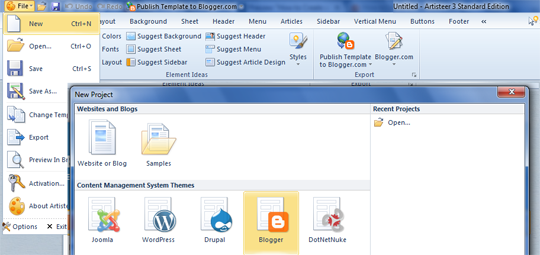
  • Click On File and then click on new
  • A Window will pop-up,and will ask you for selecting a CMS (Content management system).It supports four most popular CMS systems i.e. Blogger, Drupal, WordPress, DukeNetNuke and Joomla.Now here we will create Blogger Template,So Select Blogger,then Proceed to the next step.
designing-blogger-template

Designing The Header

  • Actually header is the main thing in Blogger template which makes a template impressive and stunning,So Creating Header is lil bit hard work.
  • Take a look On tool bar and Click On Header as shown in the Screenshot below


  • Clicking Header will Provide you many Option such as Changing the Width,Height,Background,Styles etc of Header.You Can add animated gif images in header via this Tool.You Can also add different colors to header via this tool

Designing Side-bar

  • Side-bar:- The 2nd main thing which makes a Template awesome is side-bar,side-bar can be left side-bar or right sidebar.By Clicking Sidebar from Toolbar You will get a list of Option for changing the appearance of side-bar and also to give different styles to sidebar.
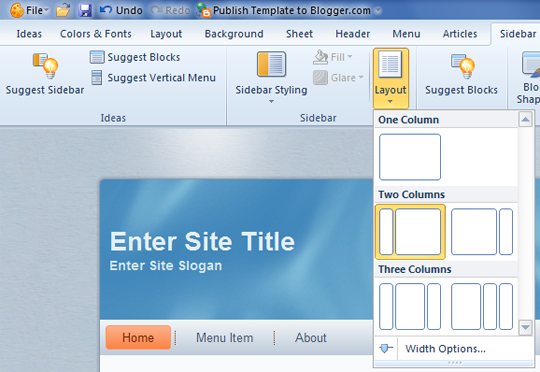
  • If you are interested in adding two side-bars to your template,just click On layout Option which will provide you a couple of options such as selecting One Column,or two columns or three columns.You can select it accordingly.


Designing Main Elements of Template

Layout :- With The Help of Artisteer you can create a beautiful layout for your template,You Can add different borders,text and other impressive stuff to your template outlook!

Background :- This option allows you to upload a unique picture,which will be placed instead of background image in your Template.You Can add your Desire image in place of Background image.

Footer:- From The Tool Bar you can select Footer Option which enables you to create a unique footer ,i.e how much columns you want to create your Blog Footer,implementing different Fonts to Footer Text etc.

Template Ready ? Time To Export!

When Template is ready,now time to export it and upload to a Blog.For Exporting the templaet follow these steps
  • Go To File Menu
  • Click On Export
  • Export Template
  • Now Save the file to a directory
  • The File will  be saved in .zip Extension 
  • Now You have to extract the files from RAR File
  • It usually contains two Files 1) Template .xml File 2) and Folder for images
  • That's it !
  • HappY Blogging!
How To Create Your Own Professional Blogger Template using Artisteer
Last Reviewed by Iftikhar uddin on July 07 2013
Rating: 4.5

How To Add Beautiful Divider(image) Between Each Comment in Blogger

The Comments Section of a Blog is the most important section,Actually readers ideas about the blog Contents are reflected in this Section.Keeping in view this thought you should make your Blogger Comment Section more accessible and neat.To make your Comments Section navigative you should add a divider between each comment,otherwise it just become a jumble of letters and makes the visitors flee away.So be Professional and make your Comments Outlook attractive and Stylish,now How to do,Follow the below steps.

How To Add Beautiful Divider(image) Between Each Comment in Blogger

  • Go To Blogger Dashboard
  • Click On Template
  • Now Click On Edit HTML
  • Now Search for This Tag ]]>
  • Now Copy the Below Script and just paste it above ]]> tag
Note:- The Below Script is for New Style Comments i.e threaded comments(with reply option)
.comment-block {
background-image:url(https://blogger.googleusercontent.com/img/b/R29vZ2xl/AVvXsEjOVDWPNaDG5K7S9QVtm0JbX5jHpUOafz7vJoLQjCzHSIdrJGKpzxhP-jdh8WKb-PleRENM3w6Ieteog7lqwXpzuSCdnvoBtOZlytNx5lKcyaURQeaQT7sri-7_dVTlvI_IsJ6ehJ9RYNsG/s1600/separater.png);
background-repeat:no-repeat;
background-position:center bottom;
padding-bottom:30px;
margin-top: -10px;
}
.comments .continue {
border-top: 0px solid $(widget.alternate.text.color);
}
Note:- The below script is for old commenting system(with no reply option)

#comments-block .comment-footer { background-image:url(https://blogger.googleusercontent.com/img/b/R29vZ2xl/AVvXsEjOVDWPNaDG5K7S9QVtm0JbX5jHpUOafz7vJoLQjCzHSIdrJGKpzxhP-jdh8WKb-PleRENM3w6Ieteog7lqwXpzuSCdnvoBtOZlytNx5lKcyaURQeaQT7sri-7_dVTlvI_IsJ6ehJ9RYNsG/s1600/separater.png); background-repeat:no-repeat; background-position:center bottom; height: 50px; }

  • For Changing the Divider image Change "https://blogger.googleusercontent.com/img/b/R29vZ2xl/AVvXsEjOVDWPNaDG5K7S9QVtm0JbX5jHpUOafz7vJoLQjCzHSIdrJGKpzxhP-jdh8WKb-PleRENM3w6Ieteog7lqwXpzuSCdnvoBtOZlytNx5lKcyaURQeaQT7sri-7_dVTlvI_IsJ6ehJ9RYNsG/s1600/separater.png" with your Own image url.
  • For changing the height of the image in Old Commenting System change the value 50.
  • Increase or decrease the padding in threaded comments by changing the value of 30px.
  • And Now just hit Save Template and that's it ;)

So What's up

Making Changes in Blogger Template is not easy,but it is interesting ;),make your comment style more beautiful by adding a divider image,stay Blessed Happy Blogging.

How To Expand Widget Templates in New HTML Editor

After the launching of New HTML Editor , Every One is Confused What To Do? How To Use New HTML Editor ? It's Quite Simple and easy,but One Question which mostly I saw in Comments was How To Expand Widget Templates in New HTML Editor? It's Not a big Deal But Let me clear it first What is Expand Widget Template? Actually "Expand Widget Templates" was an option in Old HTML Editor.By Default Old HTML Editor only shows the core code and hides the widgets Code,By Enabling this Option You Can easily Edit any Blogger Template.All Template Core Code along-with Widgets Code will be shown when you check "Expand Widget templates" Option.

Where Is Expand Widget Templates

There is no Option for Expanding Widget Templates in New HTML Editor.Because All the Codes have been shown in the New Editor,that's why You Don't Need to Expand that Code any more.In New HTML Editor all widgets have been folded,A Widget Code Section which has been folded is identified by a bold fold marker i.e arrow symbol ?,near next to the line Number.Whenever You Click on this Arrow symbol ,the concealed widget code section is revealed.
New-Html-Editor

How To Expand Widget In New HTML Editor

As we mentioned above there is no option to expand the templates in New HTML Editor however the Code has been folded and we can easily reveal that code just by Clicking the arrow mentioned above.

How To Search For A Specific Section

It is very Simple to search for a line , tag or any word in new HTML editor.First of all Click between the Code/Script of Template>>Now Press CTRL+F >> A Box will pop-up at Top right side>> Enter the desire text , tag or any character you want to search in the template Coding.Moreover if the Tag is in folded Code,by searching it will automatically reveal from concealed widget.

Directly Go To Widget Code

You Can Directly jump to a widget Code in New HTML Editor.All You have to do is use Jump To Widget feature to easily and quickly locate the desired location/Code.After finding the widget Click on ? to expand the widget before editing.
So What's Up: Still Confuse in Using New HTML editor? Ask Any Question Freely,we are here to help you in any Problem,Stay Blessed,Happy Blogging!

How To Create Table Of Contents in Blogger

Create Table Of Contents in Blogger : By Creating Table of Contents in your Blog will help you to arrange your Blog Contents category wise.This Widget is specially designed for blogs which contains alot of categories , this widget will enable them to place all the categories along-with the specific posts in a page called "Table of Contents".The most interesting fact about this widget is that it will help the readers to inform that which post is "New" and which is "Old" . The word New will dance with latest posts and Old will be with Old Posts.

How To Create Table Of Contents in Blogger

  • Get into Blogger Dashboard
  • Click On Pages
  • Create a Static Page
  • Click On HTML of the Page
  • Copy the below script and paste it into the Page HTML
 
  • Name the Page "Table Of Contents" or any thing else
  • Hit Publish and that's it!
So What's Up : This widget just arrange all the Blog Contents in a social way.And it helps the readers to navigate old and new posts.Stay Blessed ,Happy Blogging!
 
Support :
Copyright © 2011. Comment ça marche - All Rights Reserved